Procreate Photo Lessons
A pair of guided design lessons created in Procreate, where each instructional slide applies a specific interactive design principle. The project concludes with a written analysis explaining how and why each principle was used.
View Project
Procreate Photo Lesson screenshot in computer layout
Tools Used: Figma
Role: Co-Designer
Purpose
Importance of the Project
This project explores how interactive design principles can be communicated through guided visual lessons in Procreate. Each slide was designed to make a single principle clear and intuitive, reinforcing user understanding. The goal was to practice designing with intention and explaining the thinking behind each visual decision.
Structure
This section explains the two guided lessons, the shared visual system, and how each lesson is organized into slides that progressively teach interactive design principles.
Lessons
Shared Visual System
Slide Principles
1. Lessons
The project includes two guided lessons in Procreate. I designed Lesson 1, which guides users through adding photos, while Kaya Bobo designed Lesson 2. Each lesson focuses on teaching multiple interactive design principles.
lesson 1 steps
lesson 2 steps
2. Shared Visual System

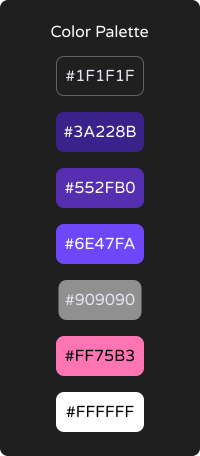
Color Palette:

The color scheme is based on Procreate’s dark mode, using the Procreate logo color as a guide for text, buttons, and highlighted areas. This connects the lessons visually to the Procreate environment while maintaining emphasis and readability.

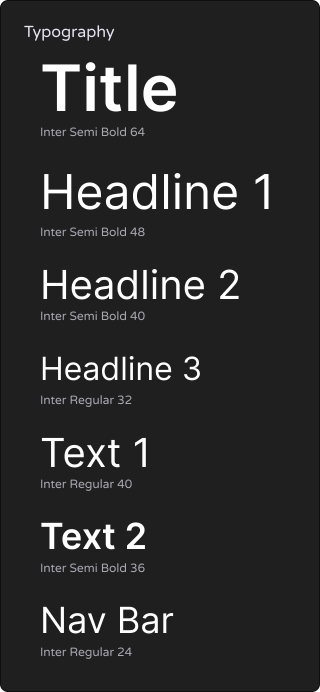
Typography:

We chose "Inter" for its readability and friendly, rounded letterforms, making instructional content easy to follow and approachable.

Visual Consistency:

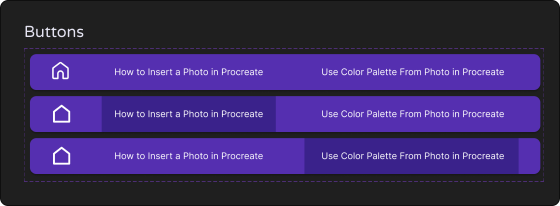
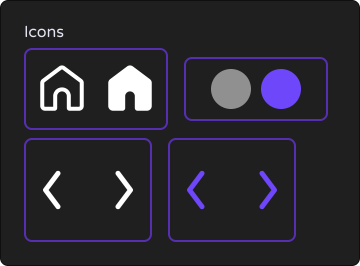
Rounded edges were applied to all lesson cards, and we extended this style to logos and navigation arrows to unify the interface and create a friendly, cohesive look.

Step Indicators:

Circular step indicators at the bottom of each slide show users their progress through the lesson. The circles reflect the rounded aesthetic used throughout the system, reinforcing visual consistency while providing clear guidance.
3. Slide Principles
Each instructional slide was intentionally designed to illustrate a single interactive design principle, including Miller’s Law, the Von Restorff Effect, and Fitts’ Law. By applying these principles, the lessons guide users step by step, making the content clear, memorable, and easy to interact with.
Lesson Highlights
This section highlights key slides from Lesson 1, which I designed, demonstrating how interactive design principles guide users toward clarity and understanding. Each example shows how visual decisions help users focus on the right information at the right time without distraction.
Multimedia Principle
Coherence Principle
Hick's Law

1. Multimedia Principle

The Multimedia Principle states that people learn better when there is both text and graphics rather than just text alone. We applied the Multimedia Principle by implementing pictures and text pertaining to the lesson, both of which convey the same information. Combining textual and visual information enhances users’ germane cognitive load, which refers to the mental effort in the working memory dedicated to processing content that is not essential but aids in the user's learning.

lesson 1 step 1 screenshot

2. Coherence Principle

The Coherence Principle is a concept in instructional design that suggests people learn better when extraneous material is excluded from educational content. We applied the Coherence Principle by only implementing text and pictures that relate to the lesson and removing unnecessary elements. This reduces the mental effort required to process information that is not essential to learning the core material, known as extraneous cognitive load. This refers to the type of cognitive load that is caused by unnecessary details that do not contribute to the understanding of key concepts.

lesson 1, step 3 screenshot

3. Hick's Law

Hick's Law states that the time it takes to make a decision increases as the number and complexity of choices increase. Taking Hick’s Law into consideration, there are only a few buttons to choose from on each page, which are the home button, back and forward buttons, and the carousel indicator.

lesson 1, step 8 screenshot
Principles
These principles were further explored in a written analysis and supporting presentation, where each slide and design choice was examined in detail.